
Make Calls Directly from Your Browser with WhatsApp Web: Practical Guide
Your phone rings, but it’s on the other side of the room. On your computer screen, the WhatsApp conversation is already open in the browser. Good news: you can answer and make your WhatsApp Web calls directly from Chrome or Edge, without touching your phone.
Microphone and camera permissions on WhatsApp Web: the prerequisite that the browser blocks by default
Before even making a call, the browser asks you to allow access to the microphone and camera. This step blocks most users who think the feature isn’t working.
Since recent versions of Chrome and Edge, permission must be explicitly granted and is tied to the domain web.whatsapp.com. If you deny it once, the browser won’t ask for it again spontaneously. You then need to click on the padlock icon in the address bar, and manually reactivate the microphone (and the camera for video).
You can also read on Hebdo Linux a detailed supplement on configuring these permissions across different systems.
On Windows, there is an additional layer: the operating system’s privacy settings. If microphone access is globally disabled in the Windows settings, the browser won’t be able to obtain it even if you allow it on the site side. So check both levels, that of the system and that of the browser.
Browsers compatible with WhatsApp calls: Chrome, Edge, and others
Not all browsers handle calls the same way. WhatsApp officially limits audio and video call support to Chrome, Microsoft Edge, and Chromium-based browsers.
Firefox and Safari are not supported for calls via WhatsApp Web. You can send messages and check your conversations, but the call button will be absent or grayed out. This is not a bug: it is a deliberate restriction related to WebRTC compatibility between browsers.
Which browser to choose for the best stability
Chrome remains the most reliable choice. Edge works well too, as it shares the same engine. If you use Brave or Vivaldi (both based on Chromium), calls generally work, but WhatsApp does not guarantee their support.
- Chrome (recent version): full audio and video support, official WhatsApp support
- Microsoft Edge: same engine as Chrome, equivalent compatibility
- Firefox and Safari: messaging only, no calling possible on these browsers
Keep the WhatsApp Web tab active during a call
Have you ever noticed that a call drops when you switch tabs? This issue arises from a resource-saving feature built into modern browsers.
Chrome and Edge automatically suspend inactive tabs to free up memory. WhatsApp explicitly recommends keeping the tab active for the entire duration of the call. If you switch to another tab for too long, the browser reduces the priority of the process, and the audio connection may degrade or drop.
“Tab suspender” extensions: a common trap
Extensions like The Great Suspender or Auto Tab Discard put unused tabs to sleep. During a WhatsApp Web call, they can interrupt the connection without warning. Disable them for the domain web.whatsapp.com, or add it to the extension’s whitelist.
The same principle applies to the browser’s power-saving modes. Chrome offers a “Memory Saver” mode in its settings (chrome://settings/performance). Add web.whatsapp.com to the always active sites to avoid any interruption.
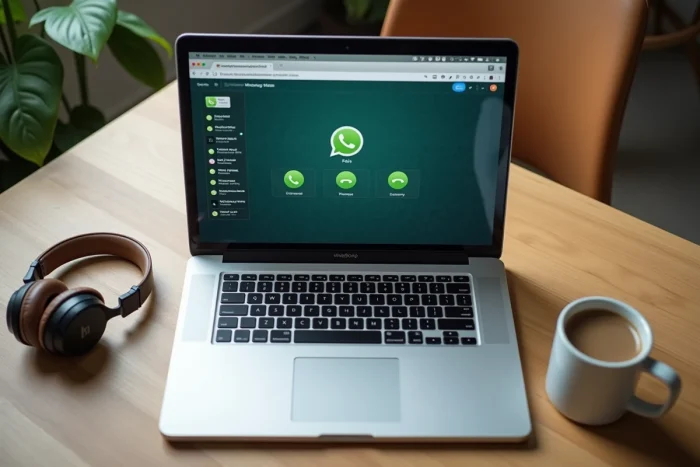
Make an audio or video call from WhatsApp on your computer
The process itself remains simple once the prerequisites are met.
Open web.whatsapp.com in Chrome or Edge, scan the QR code with your phone if the session is not already active, then open the conversation of the contact you wish to call. In the upper right corner of the chat window, two icons appear: a receiver for the audio call, a camera for the video call.
- Click on the receiver icon for a WhatsApp audio call from the browser
- Click on the camera icon for a video call
- Accept the microphone permission request (and camera if applicable) if it appears
- The call starts, a floating panel appears in the browser with controls (mute microphone, hang up, enable video)
The phone must remain connected to the internet during the call, but it can be locked or set aside. The audio and video stream goes through the computer’s connection, not through the mobile’s.
Useful keyboard shortcuts
WhatsApp Web does not offer dedicated shortcuts for calls, but you can use Ctrl+Shift+M in some cases to toggle the microphone. The shortcut varies depending on the browser and version. For text messaging, Ctrl+N opens a new conversation and Ctrl+Shift+U marks messages as unread.
The quality of the call directly depends on your internet connection and the computer’s microphone. A headset with a built-in microphone significantly improves comfort compared to the built-in speakers of a laptop, especially in a noisy environment.
WhatsApp Web and the desktop app offer comparable calling features. The browser version has the advantage of requiring no installation. However, the desktop app may better manage notifications and incoming calls when the browser is closed. The choice between the two mainly depends on your habits: if you already live in your browser, the WhatsApp Web tab is more than sufficient.